Tables
Store, query, and manage structured data directly within your workspace
Tables let you store and manage structured data directly in your workspace. Use them to maintain reference data, collect workflow outputs, or build lightweight databases — all without leaving Cadense.
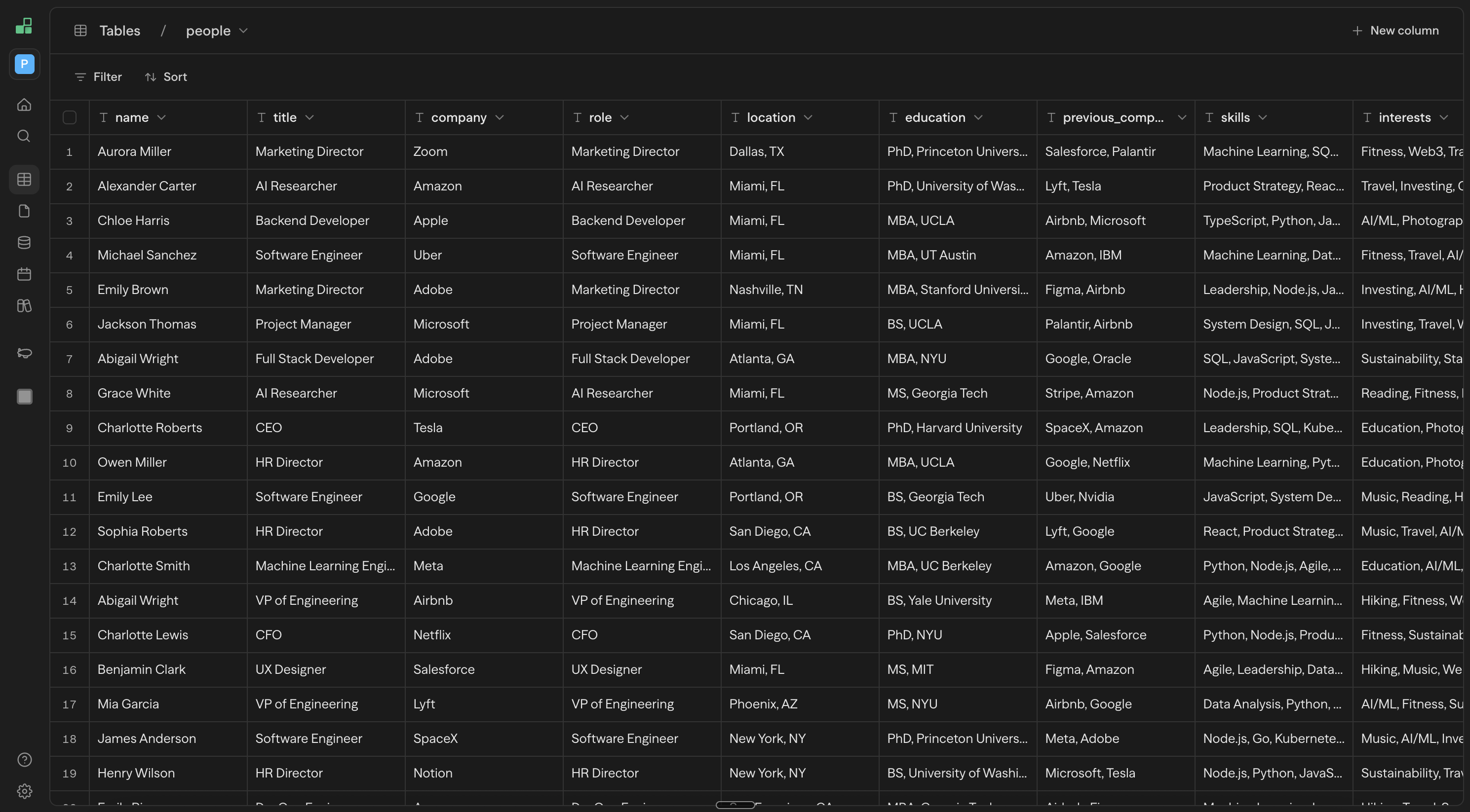
Each table has a schema of typed columns, supports filtering and sorting, and is fully accessible through the Tables API.
Creating a Table
- Open the Tables section from your workspace sidebar
- Click New table
- Name your table and start adding columns
Tables start with a single text column. Add more columns by clicking New column in the column header area.
Column Types
Each column has a type that determines how values are stored and validated.
| Type | Description | Example Values |
|---|---|---|
| Text | Free-form string | "Acme Corp", "[email protected]" |
| Number | Numeric value | 42, 3.14, -100 |
| Boolean | True or false | true, false |
| Date | Date value | 2026-03-16 |
| JSON | Structured object or array | {"key": "value"}, [1, 2, 3] |
Column types are enforced on input. For example, typing into a Number column is restricted to digits, dots, and minus signs. Non-numeric values entered via paste are coerced to 0.
Working with Rows
Adding Rows
- Click New row below the last row to append a new row
- Press Shift + Enter while a cell is selected to insert a row below
- Paste tabular data (from a spreadsheet or TSV) to bulk-create rows
Editing Cells
Click a cell to select it, then press Enter, F2, or start typing to edit. Press Escape to cancel, or Tab to save and move to the next cell.
Selecting Rows
Click a row's checkbox to select it. Selecting additional checkboxes adds to the selection without clearing previous selections. You can also drag through the row gutter to select a contiguous range quickly.
| Action | Behavior |
|---|---|
| Click checkbox | Toggle that row's selection |
| Shift + click checkbox | Select range from last clicked to current |
| Drag row gutter | Add every row in the dragged range to the selection |
| Click header checkbox | Select all / deselect all |
| Shift + Space | Toggle row selection from keyboard |
Deleting Rows
Right-click a selected row (or group of selected rows) and choose Delete row from the context menu.
Filtering and Sorting
Use the toolbar above the table to filter and sort your data.
- Filter: Set conditions on any column (e.g., "Name contains Acme"). Multiple filters are combined with AND logic.
- Sort: Order rows by any column, ascending or descending.
Filters and sorts are applied in real time and do not modify the underlying data.
Finding Data
Use Cmd + F on macOS or Ctrl + F on Windows/Linux while viewing a table to find matching cells across loaded rows in the current filtered and sorted view. Press Enter to move to the next match and Shift + Enter to move to the previous match.
Find returns matching cell locations without exposing cell values in the search response. The table selection moves to the matched cell so you can edit, copy, or inspect the row in context.
For large tables, find navigation is limited to rows currently loaded in the table view. Use filters, sorting, or scrolling to load the row range you want to inspect.
Importing Data
Tables support several import paths depending on the source and size of the data:
- Paste rows from a spreadsheet directly into the table editor for small manual imports.
- Use the Table block or Tables API for controlled programmatic inserts and updates.
- Use file-backed CSV/TSV imports when Mothership creates a table from a workspace file. Large CSV/TSV files are queued as background import jobs instead of running through the request lifecycle.
Background imports are workspace-scoped and track progress, heartbeats, attempts, warnings, rejected row counts, and final output in the table job record. Large imports should be treated as asynchronous: users can leave the page and return after the job completes.
Existing-table file imports remain bounded for safety. For large CSV/TSV files, create a new table from the file so the import can use the background job path.
Keyboard Shortcuts
All shortcuts work when the table is focused and no cell is being edited.
Mod refers to Cmd on macOS and Ctrl on Windows/Linux.
Navigation
| Shortcut | Action |
|---|---|
| Arrow keys | Move one cell |
Mod + Arrow keys | Jump to edge of table |
Tab / Shift + Tab | Move to next / previous cell |
Escape | Clear selection |
Selection
| Shortcut | Action |
|---|---|
Shift + Arrow keys | Extend selection by one cell |
Mod + Shift + Arrow keys | Extend selection to edge |
Mod + A | Select all rows |
Mod + F | Find matching cells |
Shift + Space | Toggle current row selection |
Editing
| Shortcut | Action |
|---|---|
Enter or F2 | Start editing selected cell |
Escape | Cancel editing |
| Type any character | Start editing with that character |
Shift + Enter | Insert new row below |
Space | Expand row details |
Clipboard
| Shortcut | Action |
|---|---|
Mod + C | Copy selected cells |
Mod + X | Cut selected cells |
Mod + V | Paste |
Delete / Backspace | Clear selected cells (all columns when using checkbox selection) |
History
| Shortcut | Action |
|---|---|
Mod + Z | Undo |
Mod + Shift + Z | Redo |
Mod + Y | Redo (alternative) |
Using Tables in Workflows
Tables can be read from and written to within your workflows using the Table block. Common patterns include:
- Lookup: Query a table for reference data (e.g., pricing rules, customer metadata)
- Write-back: Store workflow outputs in a table for later review or reporting
- Iteration: Process each row in a table as part of a batch workflow
Workflow Columns
Workflow columns let a table run a workflow for selected rows and write mapped workflow outputs back into table columns. A workflow group stores the workflow id, version mode, input mapping, output mapping, dependency rules, and error behavior for that batch of row runs.
Rows show per-group execution state so operators can distinguish queued, running, completed, error (shown as Failed), cancelled, skipped, not-found, and no-output states. Stop controls cancel pending or running workflow group jobs and mark the affected row executions as cancelled.
Workflow columns are bounded by table bulk-operation limits and workspace permissions. The selected workflow must belong to the same workspace, and deployed-version runs require a deployed workflow.
Background Jobs
Long-running table work uses persistent table jobs for operations such as import, export, delete, and backfill. A table job stores:
- Workspace and table scope
- Job type and status
- Progress counters, warnings, and rejected unit counts
- Heartbeat and retry metadata
- Async queue id and final output or error
The current user-facing background path is large CSV/TSV import from workspace files. Export, delete, and backfill job records share the same job model so they can be enabled behind their feature flags when their runners are registered.
Mothership Tables
Mothership can read and mutate workspace tables through bounded table tools. Destructive and large operations use guardrails:
- Reads default to a capped row count.
- Inline writes and imports are capped by table bulk-operation limits.
- CSV/TSV file imports above the inline threshold are queued as background imports when creating a new table.
- Table deletes are capped, and large or destructive requests return structured errors with recommended narrower actions.
- Output tables are replaced through tenant-scoped writes and capped row counts.
Mothership responses include structured fields such as table id, workspace id, affected row count, warnings, and job id when work is queued.
API Access
Tables are fully accessible through the REST API. You can create, read, update, and delete both tables and rows programmatically.
See the Tables API Reference for endpoints, parameters, and examples.
Best Practices
- Use typed columns to enforce data integrity — prefer Number and Boolean over storing everything as Text
- Name columns descriptively so they are self-documenting when referenced in workflows
- Use JSON columns sparingly — they are flexible but harder to filter and sort against
- Leverage the API for bulk imports rather than manually entering large datasets